
Running your own Substrata server is (hopefully) relatively easy, as it's just a single executable to run. It will require some technical proficiency though.
You can run a Substrata server on your personal computer, or on a cloud server somewhere. It's free to run.
The instructions below are generally written for running a server on your personal computer, though they can be adapted for e.g. a cloud Linux server.
Download the server distribution for your operating system:
Windows - SubstrataServer_v1.6.32.7z
MacOS - SubstrataServerMacOS_v1.6.32_x64.tar.gz
Linux - SubstrataServer_v1.6.32.tar.gz
Extract the contents into a convenient directory, e.g. c:/substrata_server
(You will need 7-zip to extract the Windows distribution)
Executables are signed by Glare Technologies Limited on Windows and Mac: on Windows, check that server.exe has a digital signature from Glare Technologies Limited. (right click on exe, Properties, Digital Signatures tab)
Run the server executable from the files you just extracted.
This will create the server_state_dir (if it does not already exist) described in the next section.
This is the top level directory where config files will be placed, and will have subdirectories where various files will be saved.
This directory will be automatically created, if it does not already exist, when the substrata server is run.
server_state_dir is:
On Windows: APPDATA/Substrata/server_data
Where APPDATA is your application data directory, something like C:\Users\YOURNAME\AppData.
On Mac: /Users/USERNAME/cyberspace_server_state
On Linux: /home/USERNAME/cyberspace_server_state
Where USERNAME is the current user name.
Copy the webserver_fragments directory from your unpacked server distribution files to your server_state_dir.
Copy the file server_config_files/substrata_server_config.xml from your unpacked server distribution files to your server_state_dir.
Copy the file server_config_files/example_substrata_server_credentials.txt from your unpacked server distribution files to your server_state_dir, and rename the file to substrata_server_credentials.txt.
For the webclient server files, download this zip file: substrata_webclient_1.6.32.zip, and extract the contents into a dir called 'webclient' in your server_state_dir.
Your server_state_dir (i.e. C:\Users\YOURNAME\AppData\Roaming\Substrata\server_data), should now look something like:
C:\Users\YOURNAME\AppData\Roaming\Substrata
   |
   --------server_data    <--This is your server_state_dir
               |
               -----------substrata_server_config.xml, substrata_server_credentials.txt
               |
               -----------webserver_public_files
               |           |
               |           ---------- logo_main_page.png, logo_small.png, main.css, map.js
               |
               -----------webserver_fragments
               |           |
               |           ---------- about_chatbots.htmlfrag, about_luau_scripting.htmlfrag, ...
               |
               -----------webclient
                           |
                           |---------- data
                           |            |
                           |            ---- gl_data, resources
                           |
                           ----------- gui_client.data, gui_client.js, gui_client.wasm, webclient.html
Now open up substrata_server_config.xml with a text editor. You will need to set webclient_dir: The location where the webclient files are found. Set it to the dir called 'webclient' in your server_state_dir as used above, e.g.
<webclient_dir>C:\Users\YOURNAME\AppData\Roaming\Substrata\server_data\webclient</webclient_dir>
In cmd.exe or powershell, change into the directory you extracted the server distribution, and run the server, e.g.
cd c:/substrata_server
./server.exe
Read the output carefully, there will probably be some warning messages, but if it doesn't exit by itself, then your server is ready to use!
Run Substrata, then enter sub://localhost (sub://127.0.0.1 on Mac) in the URL bar:
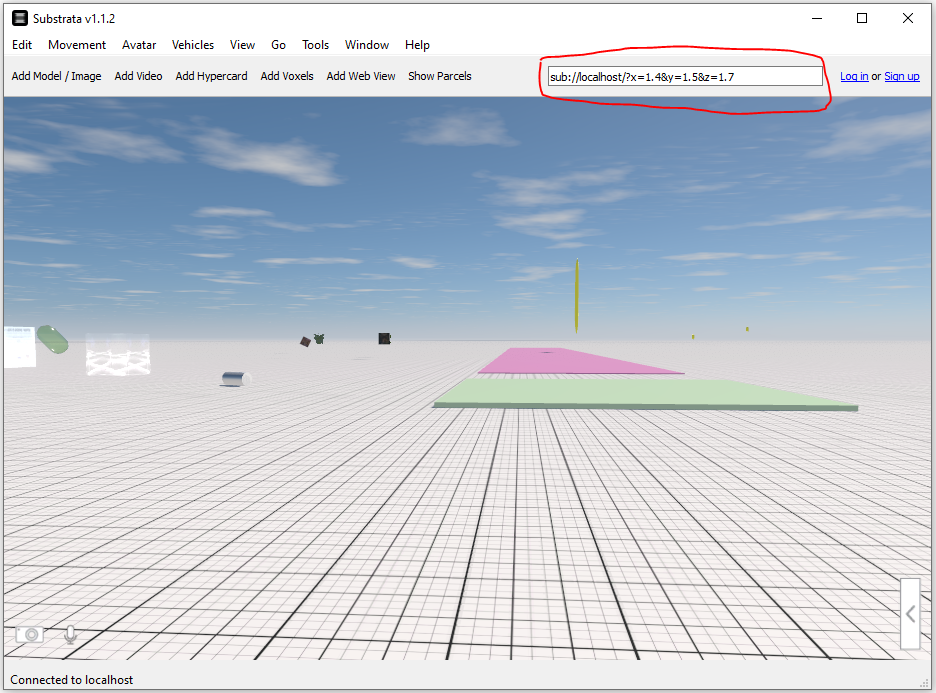
You should see an empty Substrata world.
Create a user in your Substrata client using the 'Sign Up' link in the top right of your Substrata client. The first user you create will be the admin user, and will have permissions to create and destroy objects anywhere, as well as to administer the server via the admin web interface.
In your web browser, visit https://localhost/. Note that because we used a self-signed certificate, your browser will probably complain that the certificate is invalid ('site not secure'). Just skip these warnings.
You should see a basic Substrata website:
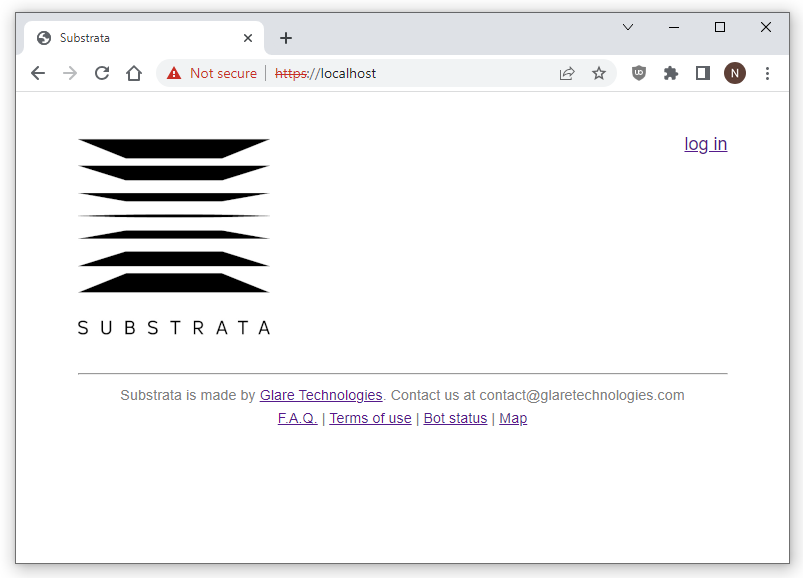
You can log into the web interface using the same username and password you just created in your Substrata client.
Once you have logged in, you can click on your name in the upper right of the page, then click on 'Admin Page' on the upper right of the page again, to access the administrator web interface:
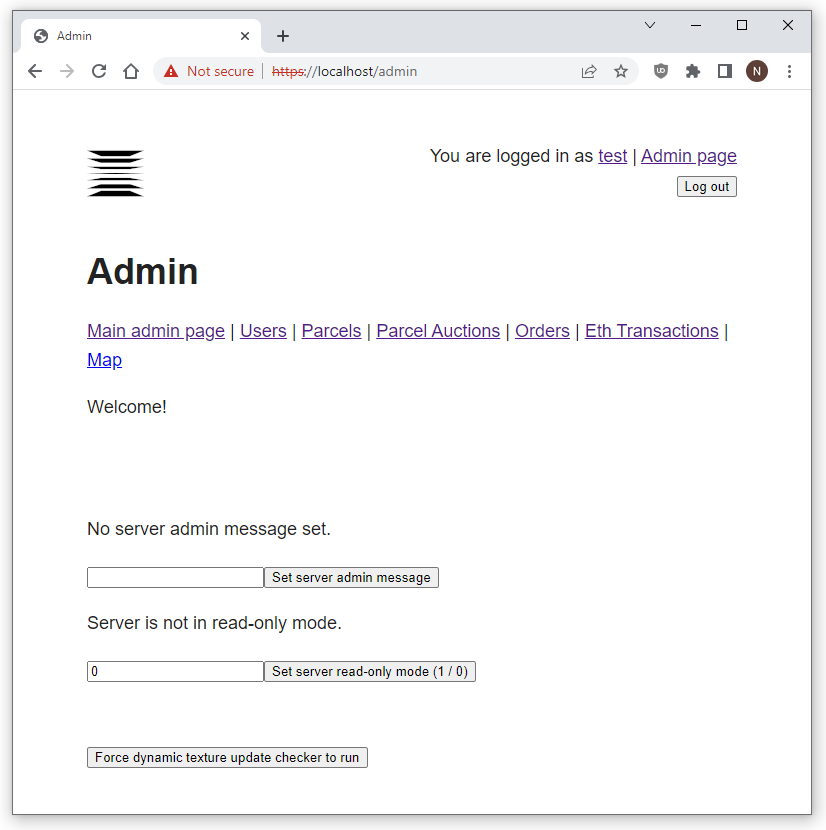
Here is a slightly out of date, but still very helpful tutorial, walking you through similar steps.
Need help running your own server? Come and chat about it on our Discord server.